Turning Google Ad Clicks Into Qualified Leads: A Practical Guide to the HubSpot and Google Ads Integration

Picture this scenario: your Google Ads campaigns are generating clicks, your cost-per-click is reasonable, and conversions are ticking along at a rate that looks fine on paper. But when your sales team reviews the incoming leads each week, a significant portion are not worth calling back. Wrong geography, wrong budget, wrong service need entirely.
This is one of the most common frustrations we hear from service businesses and their marketing agencies. The campaigns are technically performing. The leads are functionally useless.
The underlying issue is a data problem. Google's algorithm is making bidding decisions based on form submissions, and form submissions do not distinguish between a serious prospect and someone who clicked by accident. Until you give Google a better signal to work from, you are essentially asking a sophisticated machine to learn from incomplete information.
Connecting HubSpot to Google Ads fixes this by introducing what the industry calls an offline conversion feedback loop. This guide explains how the integration works, how to set it up correctly, and what to expect once it is running. If you are new to HubSpot's ad tools, HubSpot's official Ads documentation is a helpful starting point.
Understanding the Gap Between Ad Clicks and Real Business Outcomes
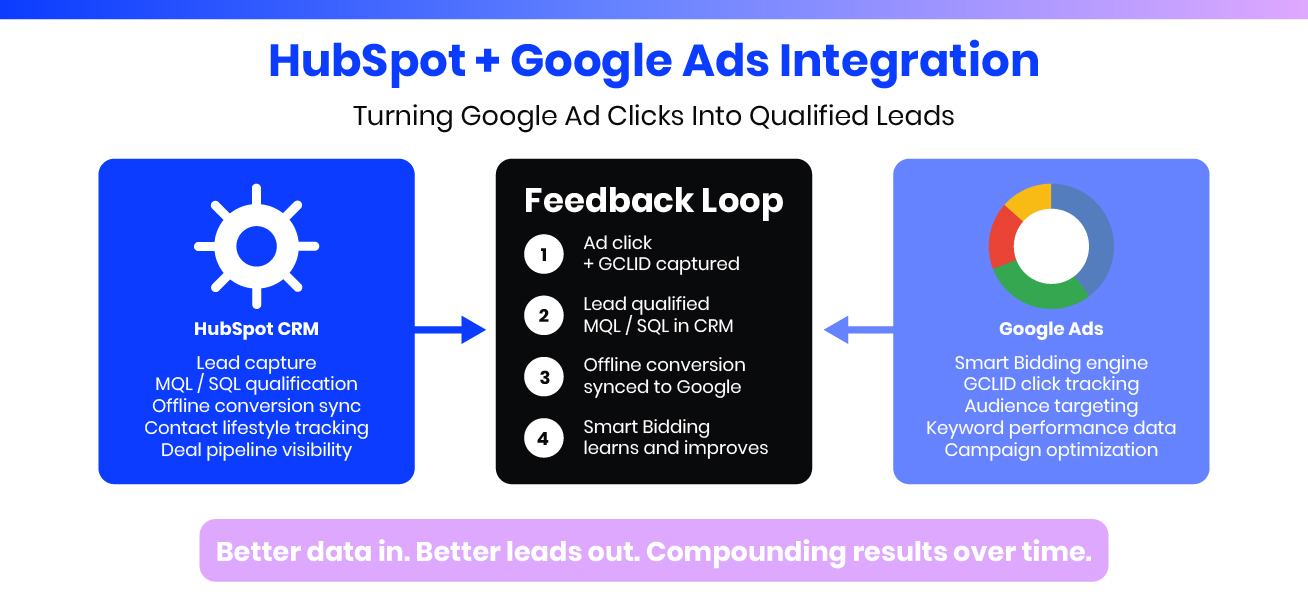
Google Ads operates on conversion signals. Every time someone clicks your ad and completes a defined action, that event gets logged and fed into the bidding algorithm. Over time, the algorithm builds a picture of what a "converting user" looks like, and it prioritizes finding more people who match that profile.
The flaw in this system is not the algorithm. The flaw is what most advertisers define as a conversion.
A form submission tells Google one thing: this person was willing to fill out a form. It says nothing about whether they had a realistic budget, whether they were in your service area, or whether they were a competitor scouting your pricing page. Yet that form fill gets counted as a win and used to train the model going forward.
This is why campaigns sometimes plateau or degrade in quality despite a healthy volume of conversions. Google has been handed a low-resolution signal and has faithfully optimized for it.
HubSpot's Google Ads integration allows you to replace that low-resolution signal with something far more precise: the qualification decision your sales team makes after speaking with, or reviewing, an incoming lead. That is a signal built on actual business judgement, and it changes the quality of information Google receives entirely.
For a broader look at how CRM data can sharpen paid media performance, Google's own guide to offline conversion imports explains the mechanics from the platform side.
What the Integration Actually Connects
Before walking through setup, it is worth being clear about what HubSpot and Google Ads are each contributing to this workflow.
Google Ads is the ad platform. It manages your campaigns, records every click, and issues a unique Google Click ID (GCLID) for each ad interaction. The GCLID is the critical piece: it is the identifier that ties a specific ad click to whatever happens downstream.
HubSpot is the CRM layer. It captures leads from your website forms, stores contact records, tracks deal stages, and (once connected) can receive the GCLID at the moment of form submission. When your team later qualifies a lead inside HubSpot, the platform can report that qualification back to Google, linked to the original GCLID, as an offline conversion event.
The result is a two-way data relationship. Google sends traffic. HubSpot captures and qualifies it. HubSpot reports back what actually converted at a business level. Google uses that information to refine who it targets next.
HubSpot also supports Customer Match lists through this integration, which allows you to build Google Ads audiences directly from your CRM contacts. This is useful for re-engagement campaigns, lookalike audience creation, and suppressing existing customers from prospecting campaigns. For this guide, we are focusing on the offline conversion workflow, which is where the greatest optimization leverage exists for most advertisers.
Setting Up HubSpot and Google Ads Integration: Step by Step
The setup spans three phases. Working through them in order matters, because steps in later phases depend on configuration completed in earlier ones.
Phase 1: Configure Your Google Ads Account
- Turn on auto-tagging. Auto-tagging is what tells Google to append a GCLID to every ad click URL. Without it, HubSpot has no identifier to capture, and the entire feedback loop breaks before it starts. To check this setting in Google Ads, navigate to Admin, then Account Settings. Make sure the auto-tagging checkbox is selected. This is step one, and it is non-negotiable.
- Create import-type conversion actions. In Google Ads, go to Goals, then Conversions, then Summary. Click to add a new conversion action and select Import as the source type. From the options presented, choose CRMs, files or other data sources, then select Track conversions from clicks. Create a separate action for each qualification milestone you plan to track. Common examples are HubSpot MQL and HubSpot SQL. Set the conversion count to One per click, and leave the conversion tag setup aside as HubSpot will populate these via API rather than a page tag.
- Confirm account access level. The Google account you use to authenticate the HubSpot connection must have Standard or Admin access on the Google Ads account. Read-only access is insufficient and will cause the connection to fail. Verify this in Google Ads under Admin, then Access and Security.
Phase 2: Connect the Accounts Inside HubSpot
- Open the Ads settings in HubSpot. From your HubSpot portal, click the Settings gear icon, go to Marketing, then Ads. On this page you will see the option to connect an ad account. Click Connect Account and select Google Ads.
- Authenticate with Google. HubSpot will redirect you to a Google sign-in page. Log in using the Google account that has the access level described in Phase 1. Grant all the permissions HubSpot requests. These permissions allow HubSpot to read campaign data and write offline conversion events back to the account.
- Select the right account. If the Google account you authenticated with manages multiple Google Ads accounts through a Manager Account (MCC), HubSpot will ask you to choose which one to connect. Select the account running the campaigns that generate leads through your HubSpot forms.
- Confirm auto-tagging and tracking. During the connection process, HubSpot checks whether auto-tagging is active. If it was not enabled during Phase 1, HubSpot will either prompt you to activate it or offer to do so automatically. Either way, confirm this step is complete before moving forward.
- Install the HubSpot tracking code on your landing pages. The HubSpot tracking pixel must be present on every page where Google Ads traffic lands. This is what allows HubSpot to read the GCLID from the URL when the page loads and associate it with the contact record created at form submission. If your landing pages are hosted in HubSpot, the tracking code is already included. For external pages, the tracking snippet must be added to the page's header.
Phase 3: Configure the Offline Conversion Workflow
- Map lifecycle stage events to Google Ads conversion actions. In HubSpot's Ads settings, under the connected Google Ads account, look for the Conversion Events section. Here you will create mappings between HubSpot events (such as a contact reaching MQL or SQL lifecycle stage) and the corresponding conversion actions you set up in Phase 1. Each qualification milestone that you want Google to learn from needs its own dedicated mapping.
- Build the qualification workflow in HubSpot. HubSpot's Workflows tool is where you automate the sync. Create a contact-based workflow with the trigger set to lifecycle stage being updated to MQL (or whichever stage you are mapping). The workflow action should be Send to Google Ads conversion, selecting the matching conversion action from the dropdown. Repeat this for each qualification stage you are tracking. This automation is what removes the need for manual exports or data reconciliation.
- Test GCLID capture with a live submission. Use a Google Ads preview click or append a test GCLID parameter to your landing page URL manually, then submit the form as a test contact. Open the resulting contact record in HubSpot and check the contact properties for a field called Google Click ID. If it is populated, GCLID capture is working. If it is empty, the most common causes are the tracking code not being installed on the landing page, or the code loading after a redirect has cleared the GCLID from the URL.
- Monitor for conversion data in Google Ads. Once real qualified leads begin syncing, check Google Ads under Goals, then Conversions, then Summary. Offline conversion data typically appears within 24 to 48 hours of the first sync event. Be aware that Google's Smart Bidding strategies require a baseline of approximately 50 offline conversions within a 30-day period before the signal is strong enough to meaningfully influence bidding. During the ramp-up period, continue running the campaign on Enhanced CPC or a manual Target CPA rather than fully automated strategies.
What Happens Inside HubSpot's Lead Center
The Lead Center is the operational interface where your team's qualification decisions drive the feedback loop in practice. It gives sales and marketing staff a consolidated view of incoming leads across all sources, including Google Ads, organic search, email, and referrals.
Within the Lead Center, team members can review new contacts as they arrive, update their lifecycle stage based on qualification criteria, log call notes and outreach activity, and trigger the downstream workflows that send conversion events to Google.
The key principle here is that the quality of the feedback loop is directly tied to how consistently your team uses it. When a lead is reviewed and marked as qualified, HubSpot fires the offline conversion sync automatically. When a lead is left unreviewed or never updated in the CRM, that absence of a qualification event is itself a signal to Google: the click that produced this person did not result in a business outcome worth repeating.
Building this habit into your team's daily workflow is as important as the technical setup. A perfectly configured integration that nobody uses consistently will not produce meaningful results.
If your team is new to structured lead qualification workflows, HubSpot's Lead Management guide covers the core features and best practices in detail.
The Compounding Effect on Campaign Performance
The optimization gains from this integration build gradually rather than appearing overnight. Here is how that plays out in practice over a typical campaign timeline.
In the first four to six weeks, the focus is on confirming the data pipeline is healthy: GCLIDs are being captured, qualified leads are syncing to Google, and conversion data is appearing in the Google Ads interface. Smart Bidding is not yet significantly influenced by the offline data at this stage, but the foundation is being laid.
From weeks six to twelve, as offline conversion volume accumulates toward and beyond the 50-event threshold, Google's bidding model begins incorporating the qualification signal. You may start to notice shifts in the types of leads arriving: better geographic match, more relevant service inquiries, higher average deal values in the pipeline.
Beyond three months, the compounding effect becomes measurable. Because Google is now targeting users who resemble your qualified leads rather than your form submitters, campaigns become progressively more efficient. Cost-per-qualified-lead tends to decline even as overall lead volume stabilizes. Budget that was previously spread across low-quality clicks concentrates on higher-intent segments.
In HubSpot, the keyword-level data becomes increasingly actionable over this period. Because each contact record carries the GCLID that links back to the originating keyword and ad, you can see which specific search terms are producing contacts that reach MQL or SQL stage, and which are producing form fills that never progress. That information informs budget allocation decisions that no keyword report in Google Ads alone could support.
Practical Mistakes That Undermine the Integration
Based on common implementation experiences, these are the issues most likely to cause the integration to fail or underperform:
- Auto-tagging disabled at point of connection. GCLIDs are never appended. No GCLID means no attribution chain. This is the most frequent reason the integration produces no conversion data.
- Conversion actions created as tag-based rather than import-type. HubSpot can only write to import-type conversion actions. If your actions were created via the standard tag route in Google Ads, they need to be recreated with Import selected as the source.
- Tracking pixel missing from non-HubSpot landing pages. If your Google Ads traffic lands on pages outside HubSpot (WordPress, Webflow, custom builds), the HubSpot tracking snippet must be manually installed in the page header. Without it, GCLIDs are not captured regardless of the connection status.
- Workflows not built or not triggering. The connection between HubSpot and Google Ads does not automatically know when to send a conversion event. That logic must be configured in Workflows. Without a workflow, lifecycle stage changes in HubSpot will not sync to Google.
- Expecting immediate Smart Bidding changes. Google requires sufficient conversion volume before offline data meaningfully influences bidding. Checking for results in week one will show nothing useful. The evaluation window should be at least 90 days from first data sync. For White Label Agency clients who want an interim report framework during the ramp-up period, our reporting templates page covers what to communicate to clients before the data matures.
- Inconsistent team qualification habits. The automation only fires when lifecycle stages are updated in HubSpot. If your team qualifies leads verbally, in a spreadsheet, or in a separate tool, none of that activity produces offline conversion events.
Who Benefits Most From This Setup
The HubSpot and Google Ads integration produces the greatest results in situations where the gap between a raw lead and a paying customer is meaningful.
- Service businesses with consultative sales processes. Trades, professional services, home services, and healthcare providers where a lead requires a call or site visit before closing. Form submissions in these categories vary enormously in quality, making a qualification signal especially valuable.
- B2B companies with defined sales cycles. When a qualified lead represents significant contract value and the pipeline from inquiry to close takes weeks or months, teaching Google to find more people who resemble your best customers has a measurable revenue impact.
- White label agencies managing Google Ads on behalf of clients. Delivering improved lead quality without increasing spend is one of the most compelling value propositions available to an agency. Setting up this integration for your clients also deepens the relationship by embedding your work into their CRM infrastructure.
- Advertisers in competitive markets with high cost-per-click. When each click costs $15 to $50 or more, the difference between Google optimizing for form fills versus qualified leads has significant budget implications. Every improvement in targeting precision reduces wasted spend.
Requirements Before You Begin
To activate this workflow, the following need to be in place:
- A HubSpot portal on Marketing Hub Starter or above. The Google Ads integration and offline conversion sync are available on all paid tiers of Marketing Hub. They are not available on the free CRM tier.
- A Google Ads account with active campaigns. The connecting Google account must have Standard or Admin-level access.
- Auto-tagging enabled in Google Ads. Confirmed in Account Settings before beginning the HubSpot connection.
- HubSpot tracking code installed on all landing pages receiving Google Ads traffic.
- A defined lead qualification criteria and team commitment to updating contact lifecycle stages in HubSpot consistently. The technical integration is straightforward. The operational discipline around it is what determines whether it generates value.
A Final Word on Data Quality
Advertising platforms are not the bottleneck for most businesses running Google Ads. The bottleneck is the quality of the data being fed into them.
Connecting HubSpot to Google Ads through the offline conversion workflow does not require a bigger budget, a campaign restructure, or a new keyword strategy. It requires the data your business already has, captured inside a CRM you are likely already using, passed back to Google in a format it can act on.
The businesses and agencies that implement this correctly end up with a progressively more efficient campaign over time. The ones that do not continue training Google on signals that tell only part of the story.
If you manage Google Ads for clients and want to offer this as part of your service delivery, White Label Agency's services page outlines how we support agencies with HubSpot and paid media integration work. For questions about implementation or campaign structure, contact our team directly.